
Introduction
A customer may want to check an order, download an invoice, submit a support request, or update account details without waiting for assistance. At the same time, an employee may need policies, payslips, project documents, approval forms, or internal updates without searching through emails and disconnected systems. Custom web portals solve these problems by bringing important services into one secure and organized digital environment. However, beginners often confuse a portal with a normal website or assume that adding more features automatically improves experience. This guide explains how thoughtful portal design, automation, personalization, integration, security, and user-focused planning can make everyday interactions simpler for both customers and employees.
Understanding Custom Web Portals in Simple Words
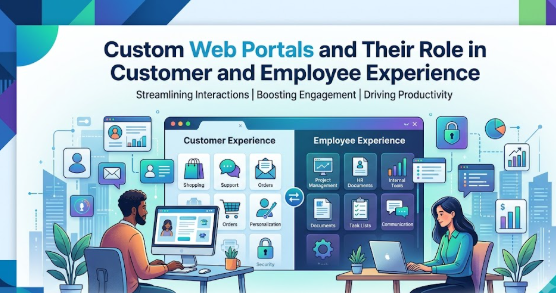
A custom web portal is a secure online platform developed around the specific processes, users, and goals of an organization. Unlike a standard public website that mainly presents information, a portal allows authorized users to sign in, view personalized content, complete tasks, upload documents, communicate with teams, and access connected services.
A customer portal may allow users to:
- Track orders or service requests
- Download invoices and receipts
- Manage subscriptions
- Update account details
- Submit documents
- Raise support tickets
- Access personalized recommendations
- Review previous transactions
An employee portal may allow staff members to:
- Access policies and company announcements
- Submit leave requests
- View payslips and benefits
- Complete training
- Collaborate on projects
- Request technical support
- Search internal knowledge
- Complete approval workflows
Custom web portal development begins with understanding what users need to accomplish. Technology is then selected to make those tasks faster, clearer, safer, and more consistent.
How a Portal Works
A portal usually connects a user-facing interface with databases, business applications, workflow systems, and security controls. After signing in, each user sees information and tools based on their identity, role, location, department, account type, or service history.
For example, a customer may see active orders and billing details, while a service agent sees customer requests and response tools. An employee may see department-specific documents, while a manager sees approval tasks and performance information.
Why People Search for Custom Web Portals
Organizations usually explore portals when they face problems such as:
- High support volumes
- Repetitive administrative tasks
- Fragmented systems
- Slow approvals
- Poor customer visibility
- Difficulty finding internal information
- Inconsistent communication
- Weak employee engagement
- Manual document handling
- Limited personalization
Common Misunderstanding
A common misunderstanding is that a portal is simply a password-protected website. A login page alone does not create a useful portal. A true portal combines secure access, personalized information, task completion, workflow automation, integration, communication, and user support.
Practical Takeaway
Begin with user tasks, not a feature list. A portal succeeds when it helps people complete important work with fewer steps, less confusion, and greater confidence.
Why Custom Web Portals Are Important
Customer and employee expectations are increasingly shaped by convenient digital services. People expect to find information quickly, complete routine actions independently, and receive clear updates without making repeated calls or sending several emails.
Custom portals support these expectations by creating a consistent digital entry point.
Better Customer Convenience
A customer self-service portal gives users access to relevant services at a time that suits them. Instead of waiting for business hours, a customer may update contact information, review service history, download a document, or check request status independently.
The better approach is not to remove human support. It is to reserve human assistance for situations that genuinely require judgment, empathy, or specialist knowledge.
Improved Employee Productivity
Employees often lose time searching across email, shared drives, messaging tools, spreadsheets, and separate business systems. An employee portal can centralize common resources and provide direct access to frequently used workflows.
When employees spend less time locating information, they can focus more attention on customers, projects, quality, and decision-making.
More Consistent Service
A portal can display approved information, standardized forms, current policies, and defined workflow steps. This reduces the possibility that different users receive conflicting instructions.
Consistency improves trust because users know where to find reliable information and what happens after they submit a request.
Greater Process Visibility
Customers and employees become frustrated when they do not know whether a request has been received, assigned, approved, rejected, or completed. A portal can show clear status information and send relevant notifications.
Visibility reduces uncertainty and prevents unnecessary follow-up messages.
Stronger Data Management
When users submit information through structured forms, organizations can collect cleaner and more complete data than they might receive through unstructured email messages.
Validation rules can also identify missing information before a form is submitted, reducing avoidable delays.
Practical Scenario
Consider a service company that handles customer onboarding through email. Customers repeatedly ask which documents are required, staff manually rename attachments, and managers cannot easily see progress. A custom portal can present a checklist, accept documents securely, validate submissions, show status updates, and notify the correct team. The customer gains clarity while employees spend less time coordinating routine steps.
The Real Problems Customers and Employees Face
Understanding user difficulties is essential before planning portal features. Many portal projects fail because organizations focus on what technology can do rather than what users are struggling to accomplish.
Information Is Scattered
Customers may find information across emails, website pages, PDF documents, chat conversations, and support tickets. Employees may search through shared folders, messaging channels, internal systems, and personal files.
This fragmentation increases effort and makes it difficult to identify the latest or most accurate information.
Support Depends Too Heavily on Manual Work
When every request requires an employee to respond personally, service becomes slower as demand increases. Staff may repeatedly answer the same questions, resend documents, check status, or enter information into another system.
Automation should handle predictable tasks while employees manage exceptions and complex issues.
Users Cannot See Progress
A lack of status visibility creates uncertainty. Customers may send repeated follow-ups, while employees may contact several departments to understand where an internal request is waiting.
A portal should display meaningful progress in language users understand rather than showing technical system codes.
Processes Are Difficult to Follow
Long forms, unclear instructions, hidden requirements, and inconsistent approval rules make users feel that a process is harder than necessary.
Good portal design breaks complex processes into smaller steps and explains what is required at each stage.
Generic Experiences Reduce Relevance
Customers do not want to search through content that does not apply to their account. Employees do not want to browse resources intended for unrelated departments.
Personalization helps users see the most relevant actions, documents, notifications, and support options.
Poor Mobile Usability Creates Friction
Many users access services through phones or tablets. A portal designed only for large desktop screens can make forms difficult to complete and information hard to read.
Responsive design should be considered from the beginning rather than added after development.
Weak Search Makes Knowledge Difficult to Use
Centralizing documents does not solve the problem when users still cannot find what they need. Search quality, content labels, categories, and document ownership are important parts of portal experience.
Unrealistic Expectations Cause Poor Decisions
Some organizations expect a portal to solve every operational problem immediately. A portal cannot repair unclear policies, badly designed processes, missing data ownership, or inconsistent internal responsibilities by itself.
The better approach is to improve the underlying process while designing the digital experience.
How Custom Web Portals Work Step by Step
Step 1: Identify the Users and Their Main Goals
The first step is to identify who will use the portal and what each group needs to accomplish. Customers, employees, managers, suppliers, partners, and administrators may have very different goals. This matters because a portal designed for everyone without clear priorities often becomes crowded and confusing. A business can apply this step by conducting interviews, reviewing support requests, observing current processes, and listing frequent user tasks. For example, customers may primarily need order tracking, while employees need document search and approvals. A common mistake is asking only senior management what users need. The better approach is to include real users and frontline teams in discovery.
Step 2: Map the Current User Journey
The next step is to document how users complete important tasks today. The journey should include every channel, handoff, delay, decision, and repeated action. This matters because many difficulties occur between systems rather than within a single screen. A team can map the steps involved in customer onboarding, leave approval, invoice access, or support escalation. For example, an employee may currently download a form, email it to a manager, wait for approval, and then send it to human resources. A common mistake is digitizing this inefficient process without simplifying it. The better approach is to remove unnecessary steps before building the portal workflow.
Step 3: Prioritize High-Value Portal Features
After understanding the journey, the organization should identify features that create the greatest user and business value. Priorities may include self-service, document access, status tracking, knowledge search, secure messaging, approvals, or personalized dashboards. This matters because trying to build everything at once increases cost, risk, and complexity. A practical approach is to rank features by user value, frequency, implementation effort, and dependency. For example, order tracking may reduce more customer effort than an advanced recommendation feature. A common mistake is prioritizing visually impressive features over essential tasks. The better approach is to build a focused first release around the most valuable journeys.
Step 4: Design Roles, Permissions, and Security
The portal must define what each user can view, create, update, approve, download, or share. This matters because portals often contain personal, financial, employment, commercial, or operational information. Security controls may include strong authentication, role-based access, session management, audit logs, encryption, and account recovery procedures. For example, a manager may approve leave requests but should not automatically see confidential records outside the manager’s responsibility. A common mistake is adding security controls late in development. The better approach is to include privacy and security requirements in the architecture and user experience from the beginning.
Step 5: Connect the Portal With Business Systems
A useful portal usually requires information from customer relationship management, enterprise resource planning, human resources, billing, document management, support, or identity systems. Integration matters because users expect current and consistent information. A business can connect systems through supported application programming interfaces, middleware, event-based services, or controlled data synchronization. For example, an order status displayed in the portal should reflect the organization’s operational system. A common mistake is copying data into several separate places without clear ownership. The better approach is to define the authoritative source for each type of information and manage synchronization carefully.
Step 6: Build a Clear and Accessible User Experience
The portal interface should make important tasks easy to identify and complete. Clear labels, readable text, simple navigation, accessible forms, mobile responsiveness, understandable error messages, and visible help all matter. For example, “Upload proof of address” is more useful than an unexplained internal document code. A common mistake is organizing navigation around internal departments or system names that users do not recognize. The better approach is to organize the portal around user goals, such as “Track my request,” “View my documents,” or “Request time off.”
Step 7: Test With Real Users and Real Scenarios
Testing should cover usability, accessibility, security, integration, performance, devices, browsers, and unusual situations. Real users should complete realistic tasks while the team observes where they hesitate or fail. For example, a customer can be asked to find an invoice, update an address, and raise a support request without guidance. A common mistake is testing only whether buttons work technically. The better approach is to test whether users understand the process, trust the information, recover from errors, and complete tasks successfully.
Step 8: Launch Gradually and Improve Continuously
A portal should be treated as an evolving service rather than a finished one-time project. A phased launch allows teams to learn from feedback, fix issues, and improve content before expanding access. Relevant measures may include task completion, search success, support demand, user feedback, error rates, adoption, and process time. A common mistake is launching the portal without ongoing ownership. The better approach is to assign responsibility for content, security, analytics, support, integration, and experience improvement.
Key Factors That Influence Portal Experience
User-Centered Design
User-centered design means making decisions based on real user needs, abilities, situations, and limitations. A technically powerful portal can still fail when users do not understand its navigation or language.
Teams should test assumptions with customers and employees rather than relying only on internal opinions.
Personalization
Personalization helps users see content and actions relevant to their account, role, department, location, or history. It can reduce search effort and make the portal feel more useful.
However, excessive personalization can become confusing or intrusive. Users should understand why information appears and retain appropriate control over preferences.
Self-Service Quality
Self-service should enable users to complete tasks independently without feeling abandoned. Helpful instructions, validation, progress indicators, status messages, and escalation options are essential.
A poorly designed self-service process simply transfers work from employees to users.
System Integration
A portal is only as reliable as the information it displays. Incomplete integration can create outdated balances, duplicated records, missing documents, or conflicting status information.
Organizations should define integration ownership, error handling, monitoring, and fallback procedures.
Security and Privacy
Users must trust that their information is protected. Security should be strong without making every routine action unnecessarily difficult.
Risk-based controls can apply stronger verification to sensitive activities while keeping low-risk tasks convenient.
Performance and Reliability
Slow loading, failed submissions, and unexpected downtime quickly reduce confidence. Performance should be tested under realistic traffic and data conditions.
The portal should also provide clear messages when a connected service is temporarily unavailable.
Accessibility
Accessible design helps people with visual, hearing, mobility, cognitive, or situational limitations use the portal. It also improves general usability through better labels, keyboard support, readable layouts, captions, and clear structure.
Accessibility should be included in design, development, content creation, and testing.
Content Quality
Portal content must be current, accurate, clear, and owned by responsible teams. Outdated policies or unclear instructions can damage trust even when the technology works perfectly.
Every important page or document should have an owner and review process.
Adoption and Change Management
Employees and customers need to understand what the portal offers, how to use it, and where to get help. Internal teams also need training on new workflows and responsibilities.
A portal should not be launched with the assumption that users will discover its value automatically.
Detailed Breakdown of Custom Web Portals
Customer Portals
A customer portal provides authenticated users with access to account-specific services and information. It can support the complete customer relationship, from onboarding and service delivery to billing, support, renewal, and feedback.
Account and Profile Management
Customers should be able to view and update permitted details without contacting support. Changes involving sensitive information may require additional verification.
Clear confirmation messages are important so customers know whether an update was completed immediately or requires review.
Order and Service Tracking
Tracking allows customers to see what has happened, what is happening now, and what comes next. The most useful status information is written in customer-friendly language and includes expected actions.
A vague label such as “Processing Code 4” provides little value. “Your documents are being reviewed; no action is required” is clearer.
Billing and Document Access
Customers may need invoices, receipts, account statements, agreements, certificates, or service reports. Centralized access reduces requests for duplicate documents.
The portal should make document dates, names, versions, and download actions easy to understand.
Customer Support
A portal can provide knowledge articles, guided troubleshooting, ticket creation, secure messaging, appointment booking, and escalation.
Support options should be connected. Users should not have to repeat the same information when moving from self-service to human assistance.
Customer Onboarding
Portal-based onboarding can provide task lists, document uploads, forms, identity checks, educational material, and progress tracking.
The process should show why each item is required and how the organization will use it.
Personalized Recommendations
A portal may recommend relevant content, services, or next actions based on account information. Recommendations should be helpful and transparent rather than aggressive.
Users should not feel that essential service functions are hidden behind promotional content.
Employee Portals
An employee portal acts as a central workplace gateway. It can connect communication, knowledge, services, collaboration, and administrative workflows.
Internal Communication
Employees may receive announcements, leadership messages, operational alerts, policy changes, and department updates. Personalization prevents every employee from receiving every message.
Critical information should remain easy to find after the initial announcement.
Human Resources Self-Service
Employees can access payslips, benefits information, leave balances, policy documents, personal details, and employment requests.
Sensitive records require carefully controlled permissions and secure handling.
Knowledge Management
A searchable knowledge area can include procedures, templates, technical instructions, onboarding material, and frequently asked questions.
Knowledge should be written for the people using it, not copied directly from internal policy language without explanation.
Workflow and Approvals
Portals can support leave requests, purchasing approvals, expense submissions, access requests, equipment requests, and document reviews.
Each workflow should show the current owner, status, next step, and expected user action.
Learning and Development
Employees can access required training, learning paths, completion records, certifications, and development resources.
Managers may see team-level progress, while employees should retain a clear view of their own requirements and opportunities.
Collaboration
Project spaces, shared resources, discussions, calendars, and task information may be connected through the portal.
The goal should be to simplify collaboration rather than duplicate every existing communication tool.
Shared Experience Principles
Customer and employee portals serve different groups, but both benefit from the same principles:
- Clear purpose
- Relevant content
- Strong security
- Simple navigation
- Accurate data
- Mobile usability
- Accessible design
- Transparent status
- Helpful error recovery
- Continuous improvement
Common Mistakes Beginners Make With Custom Web Portals
Starting With Technology Instead of User Problems
Organizations sometimes choose a platform before understanding what the portal must accomplish. This creates a risk that the team adapts business needs to the software rather than selecting technology that supports the right experience.
The better approach is to define users, journeys, outcomes, integrations, security needs, and governance first.
Trying to Build Every Feature at Once
Large feature lists increase delivery time and make testing more difficult. They can also hide the portal’s main purpose.
Start with a focused set of high-value journeys, learn from usage, and expand based on evidence.
Copying the Existing Process Without Improving It
Digitizing a confusing paper or email process does not make it user-friendly. It may simply make the same confusion happen online.
Review every step and remove unnecessary approvals, duplicate data entry, and unclear responsibilities before automation.
Ignoring Mobile Users
A portal may look acceptable on a desktop but become difficult to use on a phone. Small fields, wide tables, tiny controls, and complex uploads can prevent completion.
Test real tasks across relevant devices and network conditions.
Weak Permission Design
Giving users excessive access creates privacy and security risks. Restricting access too heavily creates delays and support requests.
Use role-based access, least-privilege principles, approval controls, and regular permission reviews.
Poor Integration Planning
A portal that displays outdated information quickly loses trust. Manual synchronization also creates extra work and inconsistency.
Define authoritative systems, data flows, synchronization rules, monitoring, and error handling.
Neglecting Search and Content Governance
Uploading hundreds of documents without naming standards, categories, ownership, or review dates creates a digital storage problem rather than a knowledge solution.
Use clear content structures and assign owners to important information.
Forcing Self-Service Without Support
Some users will face unusual cases, accessibility needs, account problems, or emotionally sensitive situations. A portal should provide clear ways to reach human help.
Self-service should improve support, not become a barrier to it.
Measuring Logins Instead of Outcomes
A high login count does not prove that the portal is useful. Users may log in repeatedly because they cannot find what they need.
Measure task completion, search success, errors, abandonment, satisfaction, support impact, and process outcomes.
Treating Launch as Completion
Content becomes outdated, integrations change, security risks evolve, and user expectations develop. Without ongoing management, portal quality declines.
Create a long-term operating model with defined owners and review cycles.
“Don’t Do This” Checklist
- Do not build a portal without interviewing users.
- Do not copy an inefficient process without reviewing it.
- Do not request unnecessary personal information.
- Do not hide essential tasks behind complex navigation.
- Do not display unexplained internal terminology.
- Do not assume all users work from desktop computers.
- Do not launch without security and accessibility testing.
- Do not connect systems without data ownership rules.
- Do not remove human support for complex situations.
- Do not leave documents without owners or review dates.
- Do not measure success through logins alone.
- Do not stop improving the portal after launch.
Practical Real-Life Examples of Custom Web Portals
Example 1: A Customer Tracking a Service Request
A customer repeatedly calls a service provider because there is no visible update after submitting documents. The challenge is not necessarily slow work; it is the lack of communication. A portal can show that the documents were received, identify the current review stage, and explain whether action is required. The learning is that clear status visibility can reduce anxiety and avoid unnecessary contact.
Example 2: An Employee Requesting Leave
An employee completes a spreadsheet, emails it to a manager, and contacts human resources to confirm approval. Information is easily missed and nobody has a complete history. An employee portal can capture the request, route it to the correct manager, update the leave balance, and store the decision. The learning is that structured workflows improve visibility and accountability.
Example 3: A Customer Downloading an Invoice
A small-business customer needs an older invoice for record-keeping but must email the finance team and wait for a response. A portal can provide searchable invoice history and secure downloads. The better action is to give customers controlled access to documents they are already entitled to receive. The learning is that simple self-service features can create significant convenience.
Example 4: A New Employee Completing Onboarding
A new employee receives policies, forms, training links, and team information through separate emails. Important steps are missed because there is no central checklist. An onboarding portal can organize tasks by priority, show completion status, and connect the employee with relevant contacts. The learning is that a guided experience reduces uncertainty during an important transition.
Example 5: A Customer Updating Account Information
A customer needs to change a business address but sends sensitive documents through ordinary email because no secure process exists. A portal can provide authenticated access, explain document requirements, validate the form, and track review. The learning is that convenience and security should be designed together.
Table 1: Standard Website vs Custom Web Portal
| Area | Standard Public Website | Custom Web Portal |
|---|---|---|
| Main purpose | Present public information | Help authorized users access services and complete tasks |
| User access | Usually open to everyone | Usually requires authentication |
| Content | Mostly general | Personalized by account, role, or context |
| Interaction | Reading, browsing, contact forms | Transactions, workflows, uploads, tracking, approvals |
| Data | Limited user-specific data | Connected account or employee information |
| Integration | May be minimal | Often connects with business systems |
| Security level | Protects public website functions | Protects identity, permissions, documents, and private data |
| Experience goal | Inform and attract visitors | Support ongoing customer or employee relationships |
Table 2: Common Portal Problems and Better Approaches
| Common Problem | User Impact | Better Approach |
|---|---|---|
| Too many menu options | Users cannot find important tasks | Organize navigation around common user goals |
| Outdated information | Users lose trust | Assign content owners and review schedules |
| Poor mobile design | Tasks are difficult on phones | Use responsive design and mobile testing |
| Weak search | Users contact support for basic information | Improve labels, filters, metadata, and search relevance |
| No status visibility | Users send repeated follow-ups | Show meaningful progress and next actions |
| Excessive data collection | Privacy concerns and longer forms | Request only information required for the process |
| Disconnected systems | Conflicting or outdated data | Define authoritative sources and reliable integrations |
| No human escalation | Users feel trapped | Provide accessible support and exception handling |
Tools, Methods, and Frameworks Readers Can Use
User Journey Mapping
A user journey map shows the steps a person takes to achieve a goal, including channels, decisions, delays, and emotions. It helps teams identify where users repeat information, wait unnecessarily, or become confused.
Beginners can start by mapping one journey, such as downloading an invoice or requesting leave. This prevents the mistake of designing isolated screens without understanding the complete experience.
Service Blueprint
A service blueprint connects the visible user journey with behind-the-scenes processes, systems, teams, rules, and dependencies. It helps organizations see what must happen internally for a portal action to work reliably.
This method prevents teams from focusing only on interface design while ignoring operational readiness.
Feature Prioritization Matrix
A prioritization matrix compares features by user value, business value, effort, urgency, and risk. It helps teams decide what belongs in the first release.
Beginners can place proposed features into categories such as high value and low effort, high value and high effort, or low value. This reduces uncontrolled scope growth.
Role and Permission Matrix
A permission matrix lists user roles against actions and information. It may show who can view, edit, approve, download, delete, or administer specific content.
This framework helps prevent excessive access and inconsistent permission decisions.
Content Audit
A content audit reviews existing documents, pages, forms, and knowledge articles. Teams can identify duplication, outdated information, missing ownership, and unclear language.
It helps avoid moving low-quality content into a new portal without improvement.
Usability Testing
Usability testing asks representative users to complete realistic tasks while observers identify difficulties. It reveals confusing labels, hidden actions, unnecessary steps, and misleading instructions.
Even a small number of well-chosen sessions can expose issues that internal teams overlook.
Accessibility Review
An accessibility review checks whether users can navigate, understand, and operate the portal with different abilities and assistive technologies.
It helps prevent barriers involving contrast, keyboard use, labels, headings, forms, error messages, audio, and motion.
Integration Map
An integration map documents which systems provide or receive data, what information is exchanged, how often it changes, and what happens when an integration fails.
This method prevents unclear dependencies and supports better technical planning.
Portal Analytics Framework
A portal analytics framework defines what success looks like and which measures support it. Useful measures may include task completion, abandonment, search success, repeated errors, support demand, workflow time, and user feedback.
The purpose is to understand experience quality rather than collect large amounts of data without clear decisions.
Expert Tips to Make Better Decisions
1. Define the Portal’s Main Purpose Clearly
A portal should have a clear reason to exist. Write a simple purpose statement describing who it serves, which problems it solves, and which outcomes it should improve. This prevents the project from becoming an unfocused collection of features.
2. Prioritize Frequent and Frustrating Tasks
Tasks that occur often and create high user effort usually provide strong starting points. Review support cases, employee questions, process delays, and user interviews. Select journeys where improved clarity or self-service can make a meaningful difference.
3. Use Language Users Understand
Internal department names, system codes, and technical labels can confuse customers and employees. Use words that describe the user’s goal. Test labels with real users instead of assuming they are obvious.
4. Keep the Home Page Focused
The portal home page should help users identify their most important actions, updates, and pending tasks. Avoid filling it with every available link. Personalize content where it improves relevance.
5. Design Forms to Prevent Errors
Explain why information is required, use suitable field types, validate entries clearly, and preserve user input after an error. Long forms should be divided into logical stages with visible progress.
6. Provide Meaningful Status Updates
Status information should explain what has happened, what comes next, and whether the user must act. Avoid showing technical workflow labels that only employees understand.
7. Connect Self-Service With Human Support
Provide escalation routes for complex or unusual cases. Pass relevant portal context to support teams so users do not need to repeat information. This creates a connected service rather than separate digital and human channels.
8. Collect Only Necessary Data
Every requested field increases effort and privacy responsibility. Review whether information is genuinely required, how long it will be kept, who can access it, and how it will be protected.
9. Build Accessibility Into Every Stage
Include accessibility in design standards, development requirements, content creation, testing, and procurement. Fixing barriers after launch is usually more difficult than preventing them.
10. Plan for Integration Failure
Connected systems may become unavailable or return incomplete information. Define fallback messages, retry processes, monitoring, and support procedures. Never leave users wondering whether a transaction succeeded.
11. Introduce the Portal in Phases
A controlled launch helps teams identify issues before they affect every user. Begin with a selected audience or limited set of journeys, collect evidence, and improve the experience before expanding.
12. Assign Long-Term Ownership
Designate owners for product direction, content, security, data, integrations, support, and analytics. Without ownership, issues remain unresolved and information becomes outdated.
13. Measure User Outcomes
Track whether users complete tasks successfully and efficiently. Combine analytics with feedback and support data. Avoid judging success only by registrations or logins.
14. Review Permissions Regularly
Employee roles, customer relationships, and partner access change over time. Regular reviews help remove unnecessary access and identify permission errors.
15. Improve the Underlying Process
A portal cannot compensate permanently for unclear policies, unnecessary approvals, or poor data quality. Simplify the service itself while improving the digital interface.
Case Studies: How Better Understanding Changes Decisions
Case Study 1: Customer Portal for a Business Service Provider
Profile: A company providing recurring operational services to small and medium-sized businesses.
Situation: Customers depended on email to request services, send documents, check progress, and obtain invoices.
Problem: Support teams received repeated status questions, attachments were difficult to organize, and customers had no consistent view of their service history.
Wrong approach: The company initially considered building a large portal with messaging, recommendations, community features, advanced reporting, and multiple dashboards in the first release.
Better approach: The project team reviewed support demand and discovered that customers mainly needed secure document exchange, request tracking, invoice access, and clear notifications. These journeys became the first release. Existing processes were simplified before development.
Result or learning: Customers gained clearer visibility, while support teams could focus on exceptions rather than routine status requests. The main learning was that a smaller portal built around high-value tasks can be more useful than a feature-heavy platform.
Key takeaway: Prioritize real customer effort over an impressive feature list.
Case Study 2: Employee Portal for a Growing Organization
Profile: An organization with employees working across several departments and locations.
Situation: Policies, forms, announcements, and training materials were stored in different shared folders and communication channels.
Problem: Employees struggled to identify current documents, and human resources repeatedly answered the same questions.
Wrong approach: The organization first planned to move every existing file into one portal without reviewing content.
Better approach: A content audit identified duplicates, outdated versions, unclear ownership, and missing guidance. The organization created a simpler information structure, assigned content owners, and added search, personalized announcements, and common employee workflows.
Result or learning: Employees gained a more reliable starting point for information and services. The project demonstrated that content governance is as important as portal software.
Key takeaway: Centralizing poor content does not create a good employee experience.
Case Study 3: Secure Onboarding Portal
Profile: A regulated service organization that needed customers to submit identity and account information.
Situation: Onboarding depended on emailed forms, attachments, manual checks, and repeated clarification.
Problem: Customers were unsure which documents were acceptable, while staff spent time identifying missing or incorrect information.
Wrong approach: The first proposal focused mainly on converting the existing form into an online version.
Better approach: The team redesigned the journey with step-by-step guidance, document examples, field validation, save-and-return capability, status visibility, permission controls, and secure upload. Staff received structured information through an integrated review workflow.
Result or learning: The process became easier to understand and manage, although complex cases still required human review. The main learning was that digital transformation involves redesigning the complete service, not simply replacing paper with a screen.
Key takeaway: Improve the process before automating it.
Risk Awareness: What Readers Must Check First
Data Privacy Risk
Portals may hold personal, employment, billing, identity, or commercial information. Collecting more data than necessary increases responsibility and potential harm.
Reduce this risk by limiting data collection, defining retention rules, controlling access, encrypting sensitive information, and communicating privacy practices clearly.
Cybersecurity Risk
Accounts may be targeted through stolen passwords, phishing, automated attacks, insecure sessions, or software vulnerabilities.
Use strong authentication, secure coding, monitoring, patching, session controls, account recovery protections, and regular security testing.
Permission Risk
Incorrect permissions may expose information to the wrong customer, employee, partner, or administrator.
Use clear role definitions, least-privilege access, approval controls, audit logs, and periodic access reviews.
Integration Risk
When connected systems fail, the portal may display outdated information or prevent task completion.
Monitor integrations, validate data, define retry behavior, provide user-friendly error messages, and create operational response procedures.
Data Quality Risk
Duplicate, missing, or incorrect records can lead users to make poor decisions or lose trust in the portal.
Define data ownership, validation, correction processes, and authoritative source systems.
Accessibility Risk
A portal that excludes users with disabilities can create serious usability, legal, ethical, and service problems.
Follow recognized accessibility practices and include people with different needs in testing.
Adoption Risk
Users may continue relying on old channels when they do not understand the portal’s benefits or find it difficult to use.
Provide clear onboarding, training, support, communication, and gradual transition plans.
Operational Risk
Automated workflows can fail when responsibilities are unclear or exceptions are not handled. A request may remain stuck without anyone noticing.
Define workflow ownership, escalation rules, service monitoring, and exception procedures.
Vendor and Platform Risk
Organizations may depend on external platforms, hosting providers, identity services, or integration tools. Changes in availability, pricing, support, or technical direction can affect the portal.
Review contracts, portability, backup options, service responsibilities, and long-term sustainability.
Misinformation Risk
Outdated policies, incorrect instructions, or poorly maintained knowledge can cause users to take the wrong action.
Assign content owners, display relevant update information, and review high-impact content regularly.
Organizations should verify legal, privacy, accessibility, security, employment, and regulatory requirements with appropriately qualified professionals.
Checklist Before Taking Action
- The portal’s users and main purpose are clearly defined.
- High-priority customer or employee journeys are documented.
- Real users have participated in research.
- Existing processes have been reviewed and simplified.
- First-release features are prioritized by value and effort.
- Required systems and integrations are identified.
- Authoritative data sources are defined.
- User roles and permissions are documented.
- Privacy and data-retention requirements are reviewed.
- Authentication and security controls are planned.
- Mobile and accessibility requirements are included.
- Content has clear owners and review processes.
- Human support and escalation routes are available.
- Integration failures and workflow exceptions are planned.
- Usability testing includes realistic tasks.
- Performance and reliability testing are included.
- Launch communication and user training are prepared.
- Success measures focus on user outcomes.
- Long-term portal ownership is assigned.
- Legal, compliance, and professional review is completed where required.
Use this checklist before selecting technology or approving development. It helps ensure that the project is based on user needs, secure operations, reliable information, and sustainable management rather than assumptions.
Strategic Insights for Better Decision-Making
Treat the Portal as a Product
A portal should have a product vision, prioritized roadmap, responsible owner, user research process, and continuous improvement cycle. Treating it as a one-time technical project often leads to declining quality after launch.
A product approach helps teams make decisions based on evidence and changing user needs.
Design Around Journeys, Not Departments
Organizations often structure portals according to internal departments such as finance, operations, human resources, or support. Users usually think in terms of goals such as “pay an invoice,” “request leave,” or “track my case.”
Journey-based organization reduces the need for users to understand the company’s internal structure.
Use Progressive Disclosure
Progressive disclosure shows essential information first and reveals additional detail when needed. This prevents screens from becoming overwhelming.
For example, a request page may show status, next action, and recent updates initially, while technical history remains available in an expandable section.
Separate Common Cases From Exceptions
Automation works best for predictable cases. Unusual situations require a defined path to human review.
Design the standard journey for efficiency while making exceptions visible and manageable.
Create a Single Source of Truth
Every important data type should have an identified authoritative system. The portal may display information from several systems, but teams must know where updates should originate.
This reduces conflicting records and unclear responsibility.
Balance Convenience and Security
Applying maximum friction to every action can damage adoption, while weak controls create unacceptable exposure. Risk-based design applies protection according to the sensitivity of the task.
Viewing general information may require normal authentication, while changing payment details may require additional verification.
Build Trust Through Transparency
Users trust a portal when it explains what information is required, why it is needed, how a process works, and what happens next.
Transparent messages are especially important during delays, errors, reviews, and security checks.
Connect Analytics With Action
Analytics are useful only when teams know how they will respond. A high abandonment rate should lead to investigation, user research, and design improvement.
Create review routines in which product, support, content, technical, and operational teams examine evidence together.
Plan for Content Lifecycle
Content should move through creation, approval, publication, review, update, archival, and removal. Without lifecycle management, portals accumulate outdated and duplicated information.
High-impact content may require more frequent review than general guidance.
Support Multilingual and Regional Needs Carefully
Organizations serving users across locations may need different languages, formats, policies, or processes. Translation should include context and terminology review rather than direct word substitution alone.
Regional differences should be managed without creating inconsistent experiences.
Key Terms Explained for Beginners
- Custom Web Portal: A secure online environment developed around the specific users, services, information, and workflows of an organization.
- Customer Self-Service: Digital tools that allow customers to complete routine tasks independently, such as tracking requests or downloading invoices.
- Employee Self-Service: Features that let employees manage common workplace tasks, including leave requests, profile updates, documents, and benefits information.
- Authentication: The process of confirming that a user is who they claim to be, usually through login credentials or additional verification.
- Authorization: The process of deciding what an authenticated user is allowed to view or do.
- Role-Based Access Control: A method of assigning permissions according to a user’s role, such as customer, employee, manager, or administrator.
- Single Sign-On: A login approach that allows a user to access several connected services using one organizational identity.
- Application Programming Interface: A structured method that allows software systems to exchange information and perform connected actions.
- System Integration: The process of connecting the portal with business applications, databases, identity services, and workflows.
- Workflow Automation: The automatic routing of tasks, information, notifications, and approvals according to defined rules.
- Personalization: The adaptation of portal content, actions, or navigation according to a user’s role, account, location, or activity.
- Responsive Design: A design approach that adjusts the portal layout for desktops, tablets, and mobile phones.
- Accessibility: The practice of making a digital service usable by people with different abilities, devices, and interaction methods.
- User Journey: The complete sequence of steps a person follows to achieve a goal through the portal and related service channels.
- Audit Log: A record showing important system and user activities, such as logins, changes, approvals, or administrative actions.
Who Should Read This Blog
Beginners
Beginners can use this guide to understand the difference between a website and a portal, learn essential terminology, and recognize the main planning steps.
Students
Students studying business, design, information technology, digital transformation, or customer experience can use the article as a practical introduction to portal strategy.
Salaried Employees
Employees can better understand how internal portals support human resources, communication, learning, collaboration, and workplace services.
Small Business Owners
Small business owners can evaluate whether customer or employee self-service could reduce repetitive administration and improve service consistency.
Managers
Managers can use the guide to identify high-value workflows, define outcomes, and avoid technology-first decisions.
Customer Experience Teams
Customer experience professionals can learn how personalization, status visibility, service design, and connected support improve digital interactions.
Human Resources Teams
Human resources teams can explore employee self-service, onboarding, knowledge, policies, training, and internal workflow opportunities.
Information Technology Teams
Technical teams can use the article to frame integration, identity, security, performance, governance, and long-term maintenance requirements.
Digital Product Teams
Product managers, designers, analysts, and developers can use the frameworks to prioritize user needs and improve portal usability.
Finance and Operations Teams
These teams can identify opportunities involving invoices, approvals, records, purchasing, expenses, and service workflows.
Customer Support Teams
Support teams can help identify repetitive questions, common user difficulties, escalation needs, and knowledge gaps.
Organizations Avoiding Digital Mistakes
Any organization planning portal development can use this guide to avoid excessive scope, weak permissions, poor content, disconnected systems, and limited user testing.
Frequently Asked Questions
1. What is a custom web portal?
A custom web portal is a secure online platform designed for a specific organization and its users. It provides personalized access to information, documents, services, workflows, communication, and connected systems after authentication.
2. How do custom web portals improve customer and employee experience?
Custom portals reduce effort by centralizing information, enabling self-service, showing request status, automating workflows, and personalizing access. They improve experience when they are designed around real user needs and supported by reliable systems.
3. What is the difference between a website and a web portal?
A public website mainly presents general information to visitors. A web portal usually requires login and allows authorized users to access personalized data, complete tasks, upload documents, communicate, or participate in workflows.
4. What features should a customer portal include?
Useful features may include account management, request tracking, invoice access, document upload, support tickets, secure messaging, knowledge articles, subscription management, and notifications. The correct feature set depends on customer needs.
5. What features should an employee portal include?
An employee portal may provide policies, payslips, leave requests, benefits information, announcements, training, knowledge search, collaboration tools, approvals, and technical support. Features should reflect the organization’s actual processes.
6. Are custom web portals suitable for small businesses?
A small business can benefit when repeated customer or employee tasks consume significant time. The portal does not need to begin as a large platform; a focused solution for a few valuable journeys may be more appropriate.
7. How can a business start custom web portal development safely?
Begin with user research, journey mapping, process improvement, feature prioritization, permission planning, and security requirements. Build a focused first release, test it with real users, and expand according to evidence.
8. What is the biggest portal development mistake?
One of the biggest mistakes is selecting technology and features before understanding user problems. This often produces an expensive portal that is technically functional but difficult or unnecessary for users.
9. How does portal personalization improve experience?
Personalization helps users see relevant tasks, information, documents, and notifications based on their role or account. It reduces searching, but it should be transparent, controlled, and respectful of privacy.
10. What security measures should a web portal use?
Controls may include secure authentication, role-based permissions, encryption, audit logs, session protection, monitoring, secure development practices, patching, and tested account recovery. Requirements should reflect the sensitivity of the data.
11. How should organizations measure portal success?
Organizations should examine task completion, abandonment, search success, error rates, support demand, workflow time, user feedback, and adoption of valuable features. Login counts alone do not show whether the portal is helpful.
12. What is the next step after learning how custom web portals improve customer and employee experience?
Select one important customer or employee journey and document how it works today. Identify delays, repeated actions, missing information, risks, and user frustrations before deciding which portal capabilities are needed.
Conclusion
Understanding how custom web portals improve customer and employee experience begins with recognizing that a portal is not simply a website with a login screen. It is a connected digital service that helps authorized users find relevant information, complete tasks, communicate securely, follow progress, and interact with an organization more easily. For customers, this may mean tracking requests, accessing invoices, submitting documents, managing accounts, or receiving support without unnecessary waiting. For employees, it may mean finding reliable policies, completing approvals, requesting workplace services, accessing training, or managing personal information through one organized environment. The strongest portal projects do not begin with technology selection or long feature lists. They begin with user research, journey mapping, process review, security planning, content governance, and clear priorities. Organizations should identify the most frequent and frustrating user tasks, simplify those processes, and build a focused first release that delivers practical value. Integration must also be planned carefully because users lose confidence when information is outdated, duplicated, or inconsistent. Security, privacy, accessibility, mobile usability, performance, and human support should be treated as essential requirements rather than later improvements. After launch, teams should measure whether people can complete important tasks successfully, not simply whether they register or log in. Feedback, support data, search behavior, workflow performance, and usability testing should guide continuous improvement. A well-designed portal can reduce confusion, strengthen service consistency, support employee productivity, and create greater visibility, but it cannot repair weak processes or unclear responsibilities on its own.
