
Introduction
Every growing business faces a hidden tax. It is not paid in money, but in time.
Employees spend hours copying data from an email into a spreadsheet, managers wait days for approval signatures, and customer support agents answer the exact same question fifty times a day. These small delays pile up. Over time, they create heavy operational drag, slow down decision-making, and frustrate talented workers who want to do meaningful work.
Smart automation solves this problem. It bridges the gap between old-fashioned manual work and modern digital speed. But many business owners find the topic confusing. They think automation requires a huge computer science team or millions of dollars in software.
In reality, smart automation is about building reliable, digital assembly lines for office tasks. This article explores how smart automation improves internal business workflows, why it matters, what can go wrong, and how you can apply it successfully without breaking your current systems.
What Is Smart Automation?
Smart automation is the use of software tools, predefined rules, and intelligent technologies to perform multi-step business tasks with little to no human intervention.
Think of it like an invisible digital helper. In the past, computer programs could only follow rigid, simple rules. If a specific button was clicked, the program did one exact thing. Today, smart automation includes tools that can read documents, understand incoming emails, make basic decisions, and connect different software programs together.
Why It Matters
When routine tasks run on autopilot, your team stops wasting energy on busywork. Workflows move smoothly from one department to another without getting stuck in someone’s inbox. This keeps projects on schedule and lowers operational costs.
Example
Imagine a customer fills out a support form on your website.
- Manual Workflow: An employee checks the form, copies the user’s name and email, opens a billing software to check their account status, pastes the details into a spreadsheet, and finally drafts a reply email. This takes ten minutes.
- Smart Automation Workflow: The form submission instantly triggers a workflow. The system verifies the user’s account in the billing software, logs the details in your database, and sends a personalized confirmation email in under two seconds.
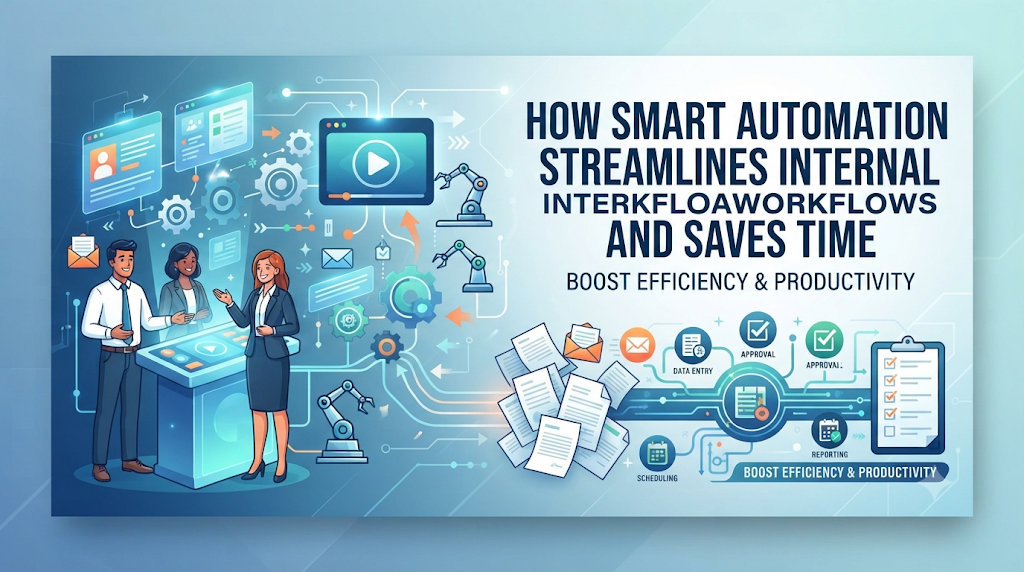
How Internal Workflows Work Before and After Automation
To understand the real value of automation, it helps to look at how daily business processes change when you introduce smart systems.
| Stage | Manual Workflow | Automated Workflow |
| Data Entry | Employees type data by hand into multiple separate files. | Systems capture data once and sync it across all tools instantly. |
| Approvals | Managers must physically sign off or reply to endless approval emails. | Rules route requests automatically and send instant alerts when approved. |
| Handoffs | Work sits in an inbox until someone remembers to pass it along. | Tasks move instantly to the next person the second a step finishes. |
| Tracking | Teams hold long meetings just to ask, “Where is this project?” | Real-time dashboards show project status clearly to everyone. |
Key Components of Smart Automation
Smart automation relies on a few core pieces working together. You do not need every component on day one, but understanding them helps you design better workflows.
1. Triggers
A trigger is an event that starts an automated sequence. It is the digital spark.
- Simple Meaning: The starting pistol of a race.
- Why It Matters: Without a clear trigger, automation cannot begin.
- Example: A new invoice file lands in a specific shared folder.
2. Actions
An action is what the system does after the trigger happens.
- Simple Meaning: The actual work performed by the software.
- Why It Matters: This replaces the manual keystrokes and clicks your team used to do.
- Example: The system extracts the invoice amount, logs it into the accounting software, and alerts the finance manager.
3. Conditional Logic
Conditional logic is a set of “if-then” rules that guide the automation process.
- Simple Meaning: Decision-making rules built into the software.
- Why It Matters: Real business work is rarely a straight line; conditional logic handles different scenarios.
- Example: If the invoice is under $500, approve it automatically. If it is over $500, send it to the director for review.
Why Smart Automation Improves Internal Business Workflows
When implemented correctly, automation changes how a business operates from the inside out.
Eliminating Operational Bottlenecks
A bottleneck happens when work piles up faster than a person can process it. For instance, if every client contract must wait for one specific manager to review it, that manager becomes a bottleneck. Automation distributes tasks instantly, preventing single points of failure.
Reducing Human Error
Humans get tired, distracted, and overwhelmed. When a person types customer data into a database for five hours straight, typos happen. Software does not get tired. It copies and moves data with perfect consistency.
Speeding Up Cycle Times
Cycle time is the total time it takes to complete a process from start to finish. Smart automation removes waiting periods between tasks. A process that once took three days of back-and-forth emails can often finish in three minutes.
Common Mistakes Beginners Make
Many businesses fail on their first try with automation because they make avoidable mistakes.
1. Automating a Broken Process
- What people do: They take a messy, confusing manual workflow and build software to run it instantly.
- Why it causes problems: Speeding up a broken process just helps you make mistakes faster.
- What you should do instead: Clean up and simplify the workflow on paper first. Only automate a process once humans can run it smoothly by hand.
2. Trying to Automate Everything at Once
- What people do: They attempt to overhaul every department—sales, HR, finance, and support—in a single week.
- Why it causes problems: Staff get overwhelmed, software integrations break, and nobody knows how to fix errors.
- What you should do instead: Pick one annoying, repetitive task (like onboarding new contractors or collecting weekly status reports) and automate that single workflow first.
3. Ignoring Human Feedback
- What people do: Management builds automated workflows in secret and forces employees to use them.
- Why it causes problems: The automated steps might miss practical edge cases that front-line workers deal with every day.
- What you should do instead: Involve the team members who do the daily work when designing the new automated workflow.
Risks and Limitations
Smart automation is powerful, but it is not a magical cure for all business problems.
Over-Automation
- Risk: Turning every single human interaction into a cold, rigid script.
- Why it matters: Customers and employees still need empathy and creative problem-solving during unique situations.
- How to reduce it: Keep humans in control of high-touch relationships, complex negotiations, and creative decisions. Automation should handle routine tasks, not human judgment.
Integration Fragility
- Risk: When one software tool updates its design or security rules, connected automated workflows can break.
- Why it matters: Broken integrations can silently stop important business data from moving.
- How to reduce it: Set up automated error alerts so your technical lead knows immediately if a workflow fails.
Decision-Making Framework: When to Automate
Before spending time and money on a new workflow automation, run it through this simple framework:
- Is the task repetitive? If you only do it once a year, leave it manual. If you do it ten times a day, automate it.
- Does it follow clear rules? If every single time requires a brand-new creative decision, keep a human on it. If it follows predictable steps, automate it.
- Is the current process stable? If your team changes how this task works every week, wait until the process settles down before building automation.
- What is the cost of failure? If a mistake costs your business thousands of dollars, build strict human checks into the automated workflow.
Checklist for Implementing Internal Workflow Automation
- Map out the current manual workflow on paper from start to finish.
- Identify the exact repetitive task or bottleneck causing the most lost time.
- Remove unnecessary steps from the workflow before adding software.
- Select simple integration and automation tools that fit your team’s skill level.
- Build a test version of the automation with dummy data.
- Run a small pilot test with a single team member for one week.
- Document how the automated workflow works so others can troubleshoot it.
Key Terms
- Workflow: The organized series of steps, tasks, and people required to complete a specific business goal.
- Integration: A connection between two different software tools that lets them share data automatically.
- Bottleneck: A point in a workflow where work slows down or stops because capacity is maxed out.
- API (Application Programming Interface): A digital bridge that allows different software applications to talk to each other securely.
- SaaS (Software as a Service): Cloud-based software that you access over the internet through a web browser instead of installing it on your local computer.
- Data Silo: A collection of data held by one group that is isolated from the rest of the organization.
- Cycle Time: The total elapsed time from the beginning of a process to its completion.
- Legacy System: Older software or computer hardware that is still in use, even though it is outdated by modern standards.
Frequently Asked Questions
Do I need to know how to code to use smart automation?
No. Modern automation tools use visual drag-and-drop builders. You do not need programming skills to connect apps and set up basic rules.
How much does workflow automation cost?
Costs vary. Many basic automation tools offer free tiers or low monthly subscriptions based on how many tasks run each month. The return on investment usually comes from the hours saved by your team.
What is the best department to start automating first?
Start with administrative tasks that require moving data between apps—such as syncing customer sign-ups from your website into your CRM or gathering weekly project updates from staff.
Can automation replace my employees?
Smart automation is designed to replace tedious tasks, not people. It frees up your team from boring administrative work so they can focus on client relationships, problem-solving, and growing the business.
How do I know if an automated workflow is working?
Track metrics like cycle time (how fast work gets done) and error rates. If tasks finish faster and with fewer mistakes after turning on the automation, the system is working.
Conclusion
Smart automation is not about turning your business into a cold machine. It is about clearing away the clutter of repetitive busywork so your team can focus on what humans do best: thinking, creating, and connecting.
Start small. Find one annoying manual bottleneck in your daily routine, map out its steps, and apply simple automated rules to fix it. Once you see how smoothly a well-designed digital workflow runs, you can expand automation to other parts of your business with confidence.
